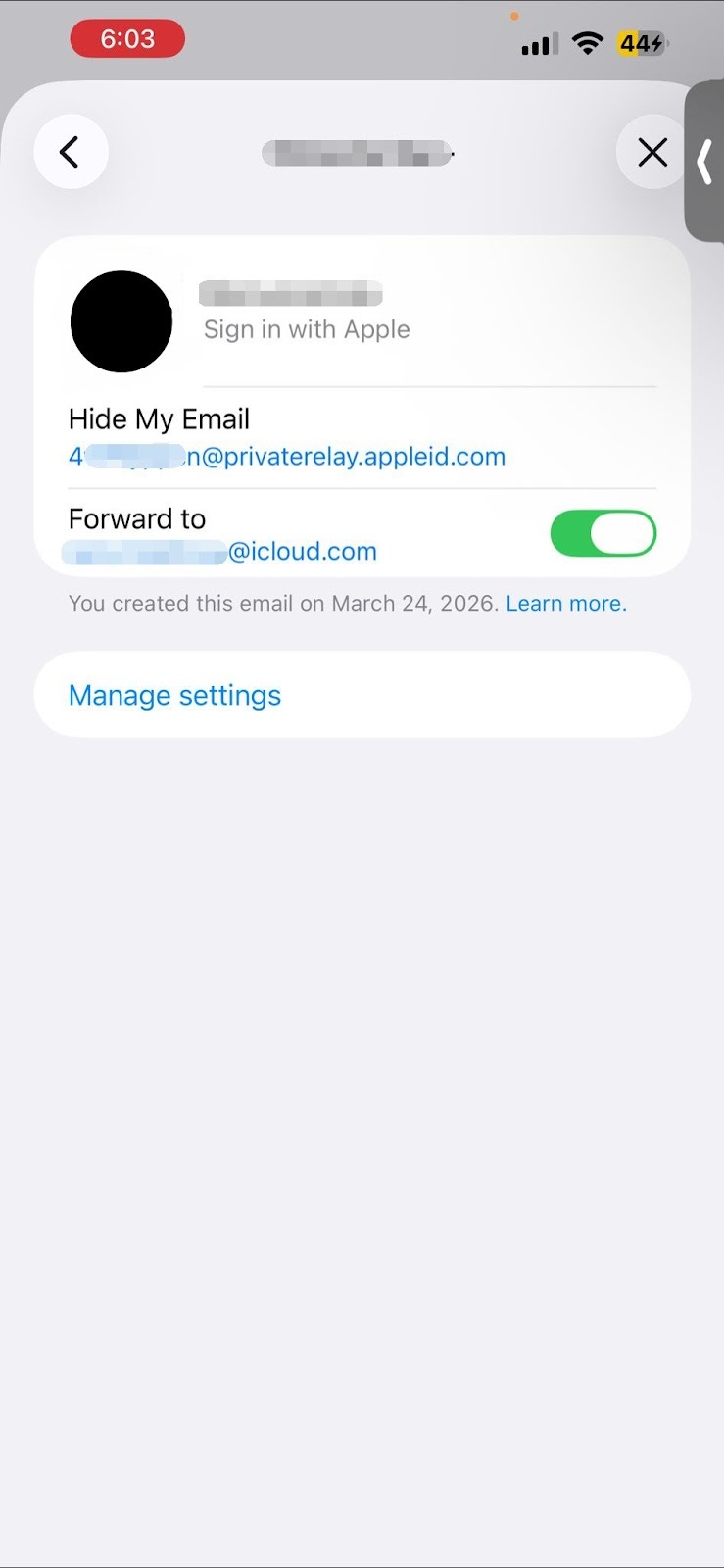
If you originally created your account on an Apple device using the "Sign in with Apple" feature and chose to "Hide My Email," Apple generated a unique, private email address for you (ending in @privaterelay.appleid.com).
Because some Connected TVs (like Roku or Amazon Fire TV) do not have a native "Sign in with Apple" button, you will need to use this private relay address to log in. Apple automatically forwards any emails sent to this private address directly to your regular personal inbox.
Step-by-Step Login Guide:
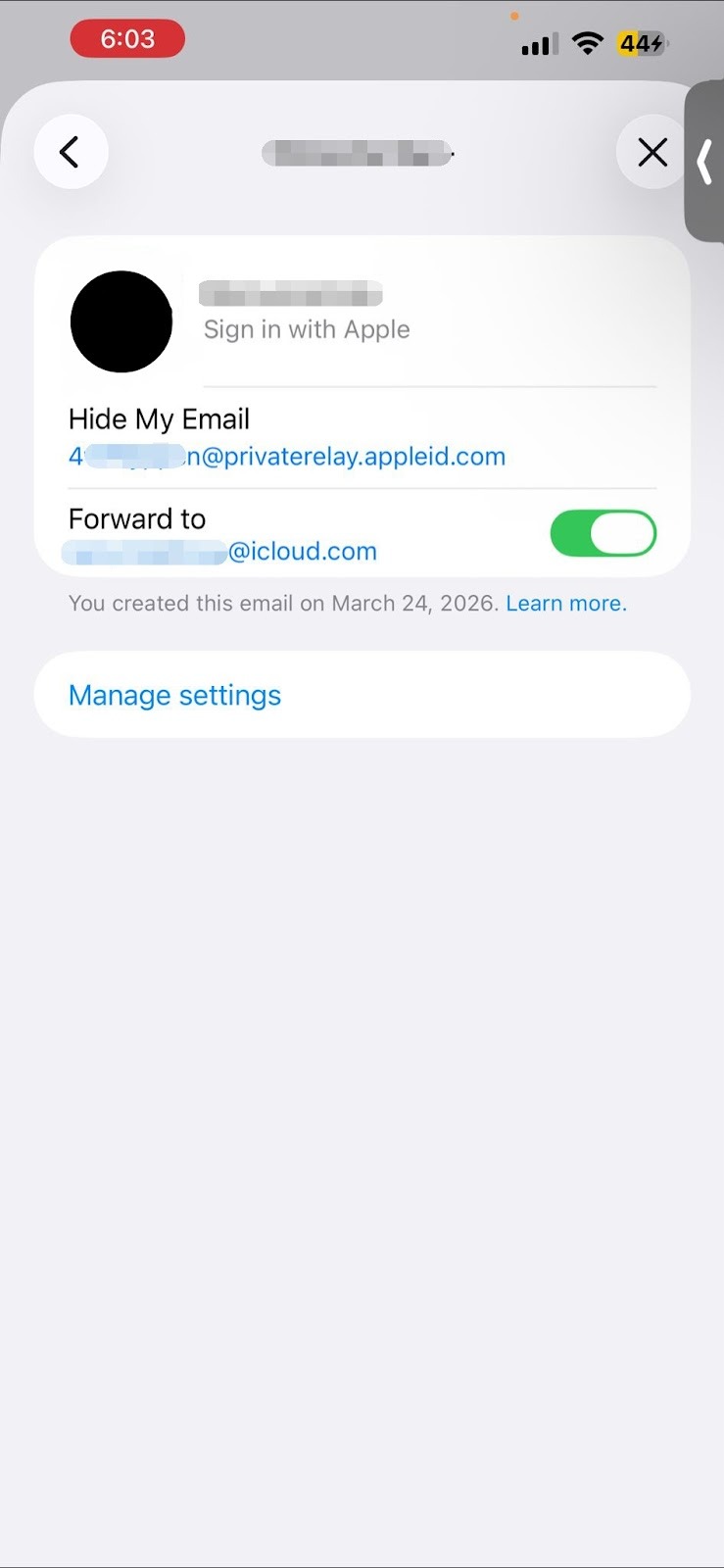
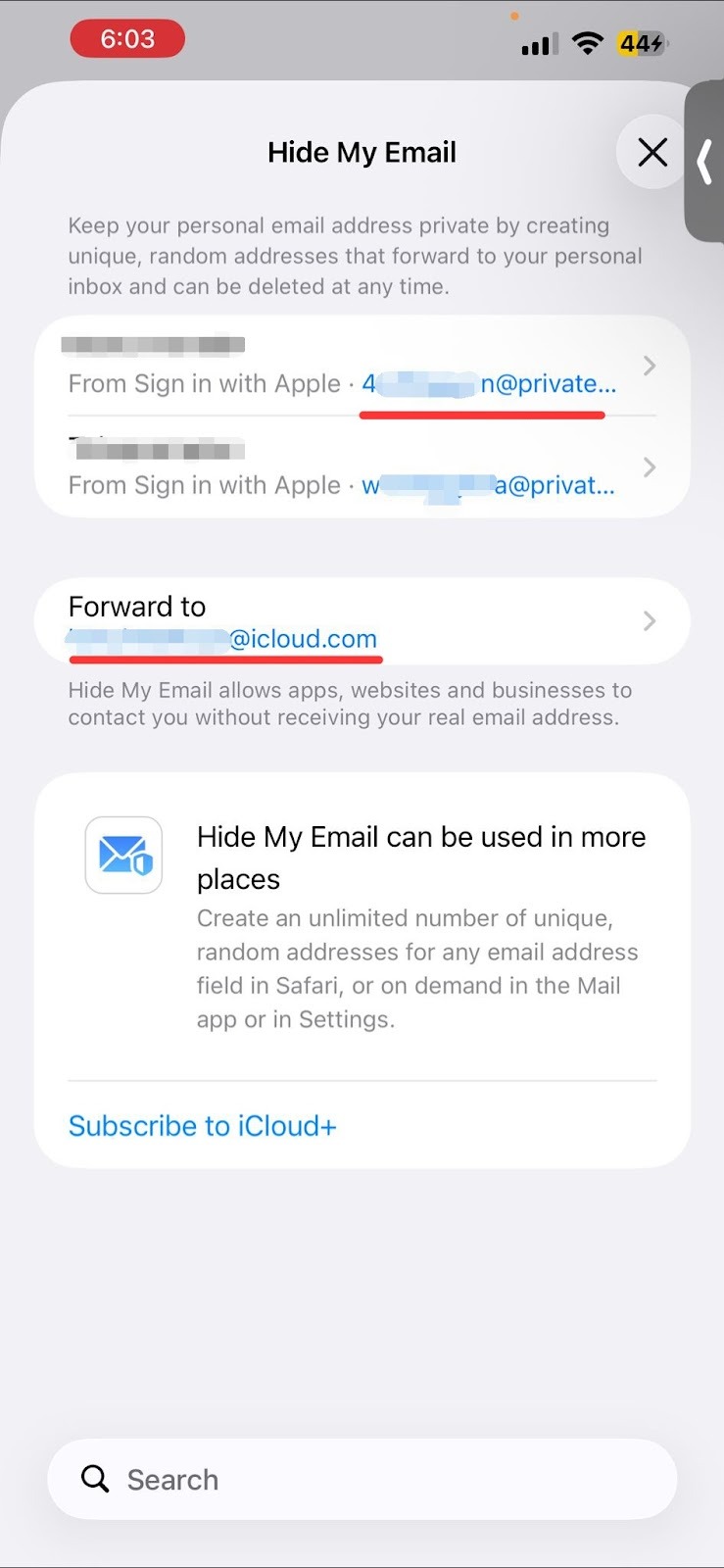
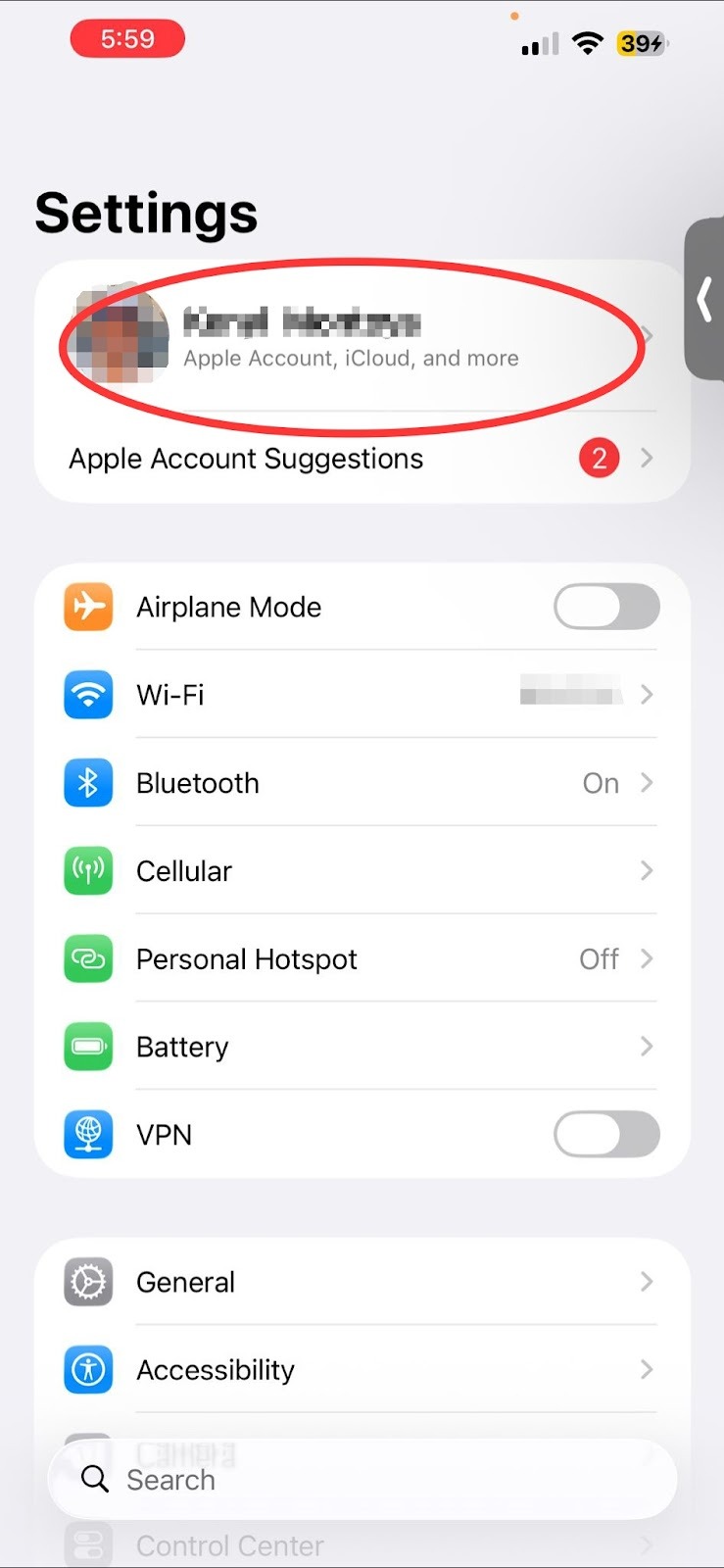
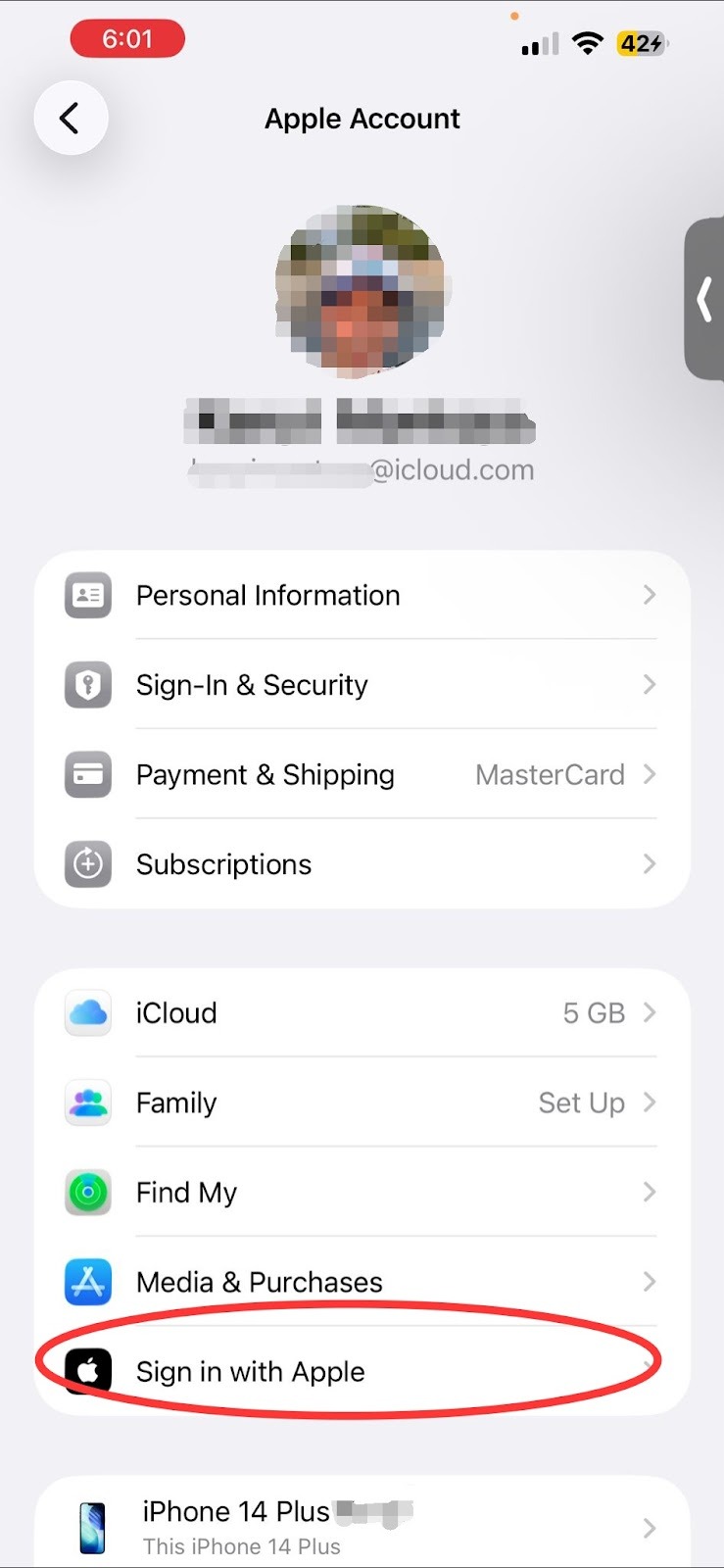
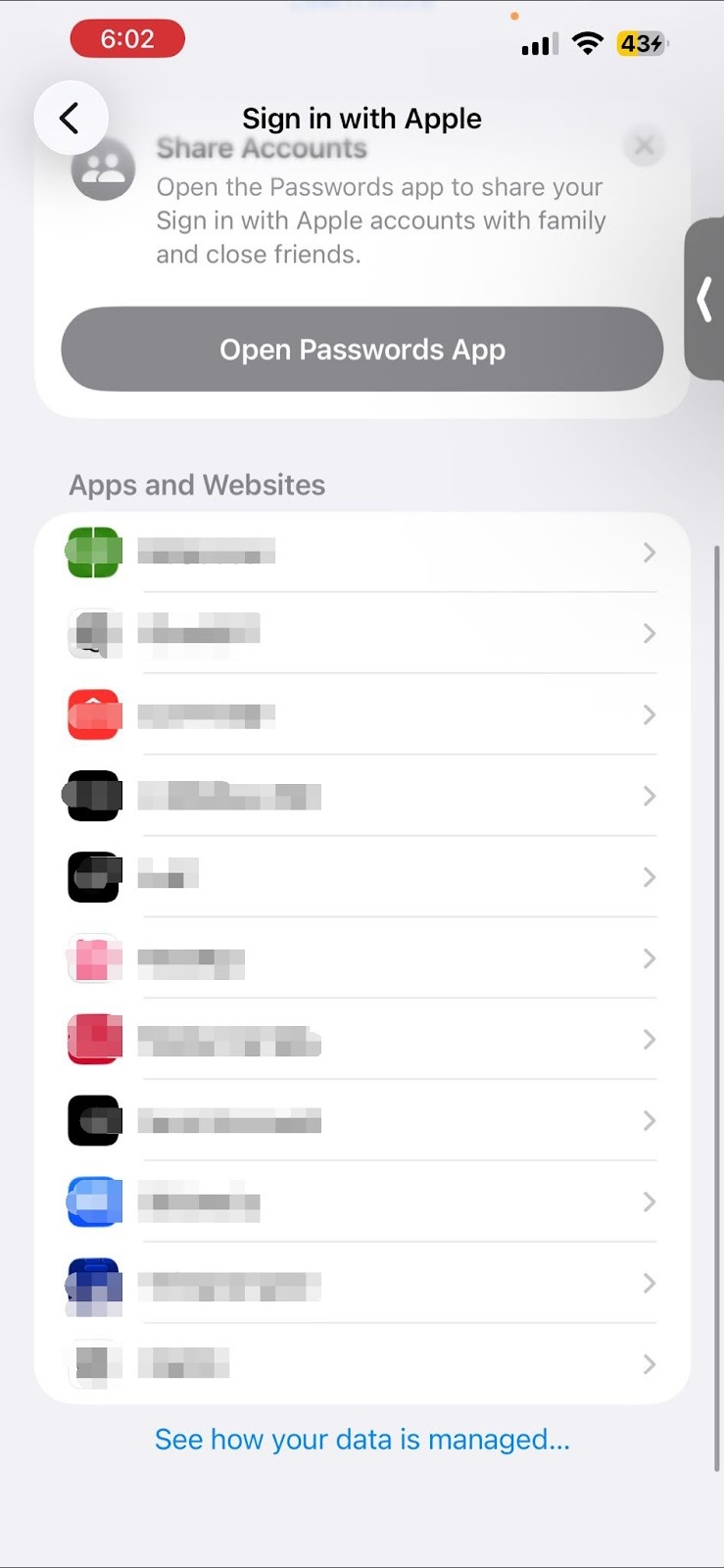
Locate your Private Email: On your iPhone or iPad, go to Settings > tap [Your Name] at the top > tap Sign in with Apple > select [App Name].
Look under "Hide My Email" to find your exact @privaterelay.appleid.com address.
Enter the Email on your TV: Open the [App Name] app on your Roku or Fire TV and carefully type that exact private relay email address into the login screen.
Check your Personal Inbox: The TV will send a verification code or Magic Link. Open your standard personal email inbox on your phone or computer. Apple will have automatically forwarded the login email there.
Complete the Login: Click the link or enter the code provided in the email, and your TV screen will automatically refresh and log you in.
If you do not receive the forwarded email or encounter an error, please contact our support team for further assistance.
Was this article helpful?
That’s Great!
Thank you for your feedback
Sorry! We couldn't be helpful
Thank you for your feedback
Feedback sent
We appreciate your effort and will try to fix the article